
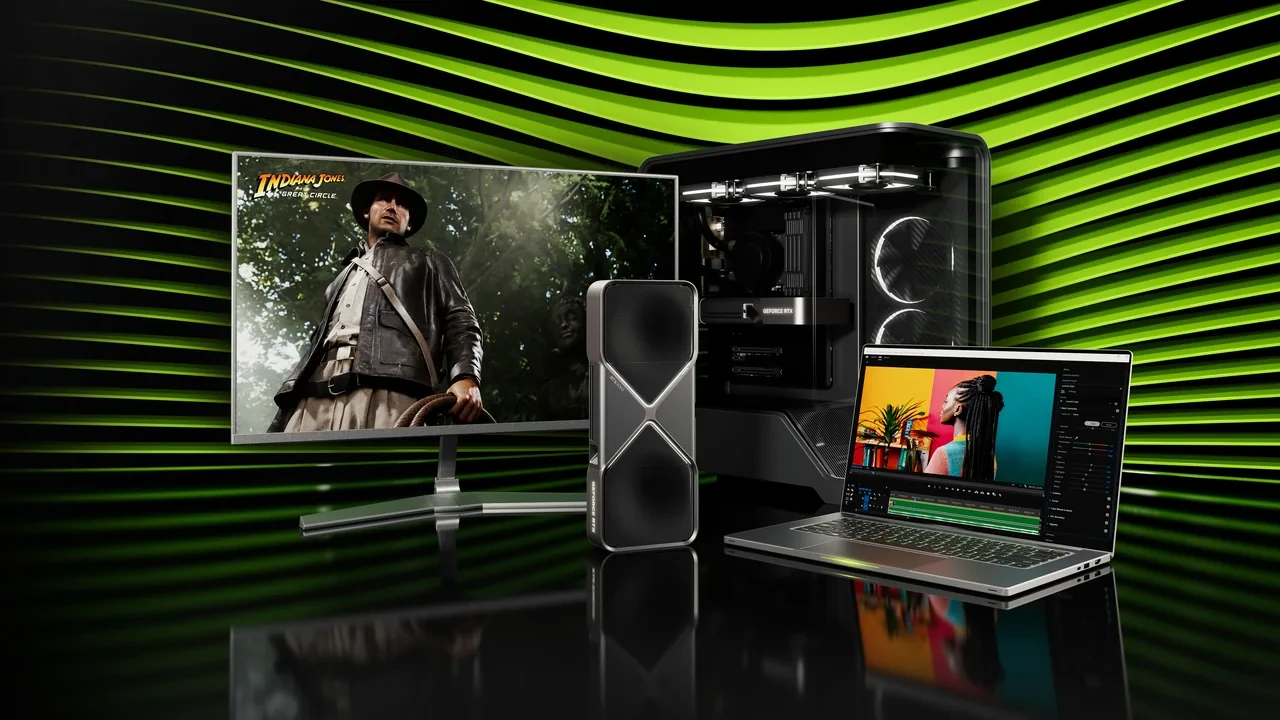
Choose the monitor target before choosing a DLSS preset for a desktop GeForce RTX 5060. A 1080p high-refresh build, a 1440p gaming system, and a 4K 60 Hz setup need different trade-offs in image quality, latency, and sustained power. Developers also need a repeatable scene and a complete version record, or a setting that looks good once won’t survive the next driver update.
DLSS 5 is scheduled to launch for the GeForce RTX 50 Series on September 3, 2026 at 21:00 PT. Until that time, any DLSS 5 control is a placeholder and the documentation is pre-release. Verified presets and SDK hooks become available when the launch window opens.
GeForce RTX 5060 DLSS 5 best settings: how the pipeline fits together
DLSS 5 adds a neural rendering pass alongside the conventional forward render on RTX 50 hardware. Both kernels share the card’s fixed power envelope. Raising the cost of one reduces the headroom available to the other, so upscaling, ray reconstruction, and generated frames must be tuned as one pipeline.
Choose the target before the preset
Three decisions define the useful range of settings:
- Target resolution and refresh rate for the main display. A 1080p 144 Hz panel needs a different profile from 1440p 165 Hz or 4K 60 Hz.
- Per-game frame budget. A competitive shooter chasing 240 FPS cannot use the same path as a ray-traced single-player game targeting 60 FPS.
- Whether latency is measured end to end or only at the GPU. Present timing, frame pacing, and VSync can matter more than the DLSS control itself.
A 4K 60 Hz panel cannot show the same benefit from an aggressive Performance preset as a 1080p 240 Hz display. Lock the display and frame-rate target first, then use the presets to meet it.
The five controls behind the menu labels
- Upscaling mode: Performance, Balanced, Quality, Ultra Performance, or native. This sets the internal resolution and the work sent to the neural pass.
- Frame Generation: on, off, or adaptive. It uses a separate model and adds latency that must be measured.
- Ray Reconstruction: replaces hand-tuned denoisers when ray tracing is active and the game exposes the option.
- Sharpening: controls the post-upscale filter. Too much causes ringing; too little can look soft at 1080p.
- Latency reduction: NVIDIA Reflex on, on plus boost, or off. Reflex is separate from DLSS 5 but helps close the latency gap created by Frame Generation.
Preset names vary between engines. Read the underlying values rather than trusting a label copied into a settings menu.
Starting profiles for common displays
The desktop RTX 5060 sits in the 8 GB class. That makes 1080p and 1440p its natural targets, while 4K with ray tracing needs careful scene optimization and aggressive assistance.
| Use case | Target frame rate | Upscaling mode | Frame generation | Ray reconstruction | Reflex |
|---|---|---|---|---|---|
| Competitive shooter at 1080p, 240 Hz monitor | 240 | Performance | Off | Off | On plus boost |
| Mixed online play at 1440p, 165 Hz monitor | 165 | Balanced | Off | Off | On |
| Single-player with ray tracing, 1440p, 60 Hz monitor | 60 | Quality | On | On | On |
| Cinematic single-player, 4K, 60 Hz monitor | 60 | Quality | On | On | On |
| Esports title with capped frame rate, 360 Hz monitor | 360 | Performance | Off | Off | On plus boost |
These are starting points, not guaranteed results. A 4K ray-traced workload will sit near the bottom of the card’s range unless the scene and the rest of the PC are well balanced.
A preset name does not standardize the engine
One engine’s Quality mode may use a heavier sharpener than another’s. Compare the preset with native output in the same scene. If native 1080p looks cleaner, check for over-sharpening or a Ray Reconstruction problem. If the preset looks better, it may be correcting undersampling elsewhere in the renderer.
The RTX 50 series reference identifies the Blackwell desktop lineup and the RTX 5060’s place in it. Use it for hardware context. The actual settings surface lives in the driver, NVIDIA App, and engine integration.
Studio recommendations only cover the scenes that were tested. If your scene is absent, capture your own sequence instead of judging against a marketing screenshot.
Image quality starts with internal resolution
- Set internal render scale first. Moving from Quality to Balanced sends roughly 30 percent fewer pixels to the neural pass and is the largest single image-quality change.
- Use Ray Reconstruction with ray tracing when it improves on the engine denoiser. Leave it off when the game has no ray-traced passes.
- Adjust sharpening only after the scale is settled. Lower it for halos and raise it when the output remains soft.
- Configure color space and HDR in both the operating system and game so the model receives the intended range.
- Test motion blur and film grain both ways. Depending on the engine, they can hide or amplify reconstruction artifacts.
A good render scale with sharpening at zero usually beats an over-sharpened image built from too little source detail.
Latency comes from the whole presentation path
- For the lowest latency, disable VSync in both driver and engine. A 240 Hz display has a 4.16 ms refresh budget, and VSync can roughly double input lag.
- Frame Generation adds one synthetic frame of latency. Use it only when the base render is stable; below roughly 60 FPS, the display can look smoother while control feels slower.
- Reflex on plus boost reduces queue depth. The boost setting costs a small amount of CPU time and suits input-sensitive games.
Reflex on is a sensible default in most titles. Use on plus boost for competitive play, and turn Reflex off only when an engine bug prevents the lower-latency path from working.
Validate every change in the same scene
- Capture a 60-second run with heavy effects, a fast camera move, and a static moment. Reuse that exact scene for every preset.
- Record average, one-percent-low, and zero-point-one-percent-low frame times. The average hides stutter.
- Measure end-to-end system latency with the NVIDIA Reflex latency analyzer or a compatible external tool.
- Take matched screenshots with the HUD disabled and compare them in an image tool.
- Repeat after a 20-minute warm-up so the cooler has reached a realistic thermal state.
Log every run. A preset that raises the average but lowers the one-percent-low is a regression.
Engine-specific starting points
The NVIDIA DLSS 5 launch and compatibility documentation identifies the supported product family. The engine still decides where the controls live and how they interact.
| Engine family | Where the DLSS 5 control lives | Recommended starting preset at 1080p | Recommended starting preset at 1440p | Notes |
|---|---|---|---|---|
| Unreal Engine 5 (DLSS 5 plugin) | Project Settings, NVIDIA DLSS 5 category | Quality, frame generation on if scene is 60+ FPS | Balanced, frame generation on if scene is 60+ FPS | Lumen interacts with ray reconstruction; test scenes with Lumen on and off before shipping. |
| Unity URP / HDRP (DLSS 5 package) | Package settings, NVIDIA menu | Quality, frame generation on | Balanced, frame generation on | HDRP ray-traced effects benefit more from ray reconstruction than URP forward rendering. |
| id Tech / custom engines | In-game menu, NVIDIA App override | Quality, frame generation on | Quality, frame generation on | Engine-specific sharpening may need to be reduced to zero to avoid double sharpening. |
| Proprietary AAA engines | In-game menu | Match the labeled preset to the table above | Match the labeled preset to the table above | Validate first; labeled presets are not standardized across studios. |
Use the NVIDIA App override for A/B testing when a game lacks the new controls. Return it to default before recording final numbers; the in-engine path is what players will use after launch.
Developer sign-off for the floor SKU
- Freeze a worst-case validation scene that QA can reproduce.
- Cap cinematics separately from gameplay. A 30 FPS cutscene can hide a percentile cost that is unacceptable during play.
- Test the lowest preset on the lowest target hardware. RTX 5060 Quality at 1080p is the stated floor for this matrix.
- Record engine, driver, and DLSS 5 plugin or SDK versions with every run.
- Repeat the validation on a fresh driver after each DLSS 5 release.
A bug report with complete versions is reproducible. One without them has to be recreated from scratch.
Configuration mistakes that waste the card
- Frame Generation combined with a fixed frame-rate cap can add latency to an already bounded pipeline.
- Driver VSync, Reflex, and Frame Generation enabled together can fight over queue and present timing.
- Native rendering and DLSS Quality selected together leave the upscaling preset with no useful work.
- Engine sharpening stacked on a sharpened Quality preset produces ringing around high-contrast edges.
- HDR enabled in Windows but not in the game can feed SDR-range input into the neural pass and produce a washed-out image.
A short capture usually reveals double sharpening and present-timing conflicts. Change one control at a time.
Heat can erase a good preset
DLSS 5 can draw more power than native rendering at the same target rate because the raster and neural passes run together. Check the system before blaming the preset:
- Small-form-factor cases with one intake fan may need a second intake or a slot with better airflow.
- Vertical mounts without bottom intake can trap heat. Test the standard mount before changing settings.
- Slow custom fan curves can hide thermal saturation. A flat 60 percent curve is a useful validation baseline.
- Ambient temperature above 25 degrees Celsius changes sustained behavior. A profile stable at 19 degrees may stutter in a 28-degree office.
Run long enough to reach steady state. A result that holds for two minutes can fail after 20.
Keep driver, app, and plugin versions aligned
- Install the latest Game Ready Driver recommended by the NVIDIA App. Studio Drivers remain an option for content creation.
- Confirm that the NVIDIA App override matches the engine preset when performing A/B tests.
- Check that the engine plugin or package matches the driver. A missing preset label often indicates a version mismatch.
- Reboot after a driver change so the old control panel is not left in memory.
For final capture, use the matching Game Ready driver and engine plugin with the NVIDIA App override at default.
Revalidate when the launch build arrives
- Expect new preset names and a reorganized driver or NVIDIA App panel, while the five underlying setting families remain.
- The launch driver will include an updated neural model. Pre-release benchmarks will not be directly comparable.
- Unreal Engine, Unity, and major proprietary engines will receive updated plugins that require a new preset pass.
- The NVIDIA launch and compatibility documentation will be updated with supported products and timing.
Treat September 3, 2026 at 21:00 PT as a revalidation point, not merely a marketing date.
A practical desktop validation bench
| Component | Role | Minimum for a 1080p 144 Hz target | Minimum for a 1440p 165 Hz target |
|---|---|---|---|
| CPU | Scene update and draw call submission | Recent six-core with high single-thread performance | Recent eight-core with high single-thread performance |
| Memory | Frame and asset storage | 16 GB dual-channel | 16 GB dual-channel |
| Storage | Asset streaming | NVMe SSD | NVMe SSD |
| PSU | Power delivery | 550 W 80+ Bronze or better | 650 W 80+ Bronze or better |
| Cooling | Case airflow | Two intake, one exhaust | Two intake, two exhaust |
| Monitor | Display and latency target | 1080p 144 Hz with adaptive sync | 1440p 165 Hz with adaptive sync |
A 550 W supply with the correct 12V-2×6 connector suits the 1080p target. The 1440p 165 Hz ray-traced profile with Frame Generation calls for the 650 W column to reduce the risk of transient brownouts. A brownout produces a driver reset, not a neat performance regression.
Frequently asked questions
What settings suit 1080p competitive play?
Start with Performance, Frame Generation off, Ray Reconstruction off, and Reflex on plus boost. Use Quality only when the average is comfortably above refresh and image fidelity matters more than the latency difference.
Should Frame Generation be enabled?
Enable it when the rasterized rate is at least 60 FPS and the game is not highly input-sensitive. It can suit adventure, simulation, and some less latency-sensitive multiplayer games. Competitive shooters should leave it off.
How does DLSS 5 differ from earlier versions?
It is the RTX 50 launch stack with updated neural models and a unified control surface. Older paths remain available in engines that have not adopted the new plugin.
What sharpening value should I use at 1080p?
Set the engine sharpener to zero first. Raise DLSS sharpening only if the image remains soft, and touch the engine filter last.
Does Ray Reconstruction help without ray tracing?
No. It has no noisy ray-traced input to denoise and only adds a small GPU cost.
How does Reflex interact with DLSS 5?
Reflex shortens the render queue and helps offset latency from upscaling and generated frames. Use on for most games and on plus boost for input-sensitive play.
Will DLSS 5 work in every game?
No. Each game needs engine integration. Unsupported titles fall back to their existing upscaler or native rendering.
How should latency be measured?
Use a Reflex analyzer or a high-speed camera with a known input event. Measure the full input, simulation, render, and present path in the same controlled scene.
How should a developer set the minimum specification?
Treat the RTX 5060 as the floor, validate a fixed 1080p scene, and record average and one-percent-low frame times with engine, driver, and plugin versions.
When will DLSS 5 be available?
The scheduled release is September 3, 2026 at 21:00 PT. Plan the definitive validation pass after the launch driver, plugins, and test scene are all available.
Leave a Reply